Social Media Executive Impersonations
Module and Dashboard Summary
Bolster’s Social Media module provides a complete view of threats found on social media platforms like Facebook and LinkedIn. Bolster scans these platforms based on targeted search terms that your organization creates.
The Social Media dashboard provides a snapshot of threat detection activity across social media platforms, based on your organization’s search terms, for a selected time period. It helps security teams quickly understand the scale and characteristics of detected threats on those platforms.
For more, see Social Media Module: Dashboard and Findings.
Executive Impersonations View
The Social Media dashboard contains an Executive Impersonations view. This view organizes data for all executives cataloged as Assets in your organization’s account.
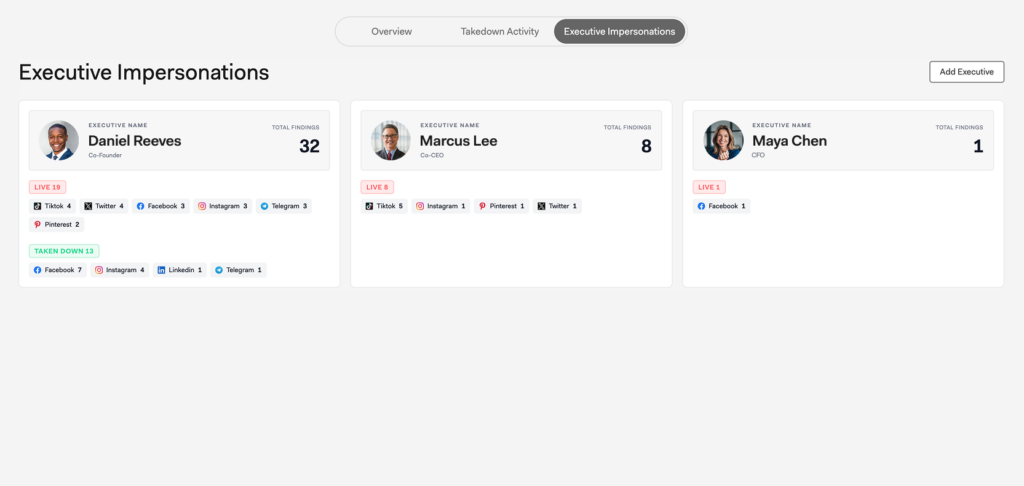
To access this view, select Executive Impersonations at the top of the Social Media dashboard. Use the view to see all executives added to the catalog, along with their data, at a glance:
- Name and title
- Total number of impersonation threats found
- Breakdown of threats by
- Current state (Live, Takedown in Progress, or Taken Down)
- Originating platforms (such as Facebook, LinkedIn, etc).
Click the Add an Executive button in the upper right to add a new executive to the Assets catalog. You can then use the executive in an executive impersonation social media search term.
Expanded View
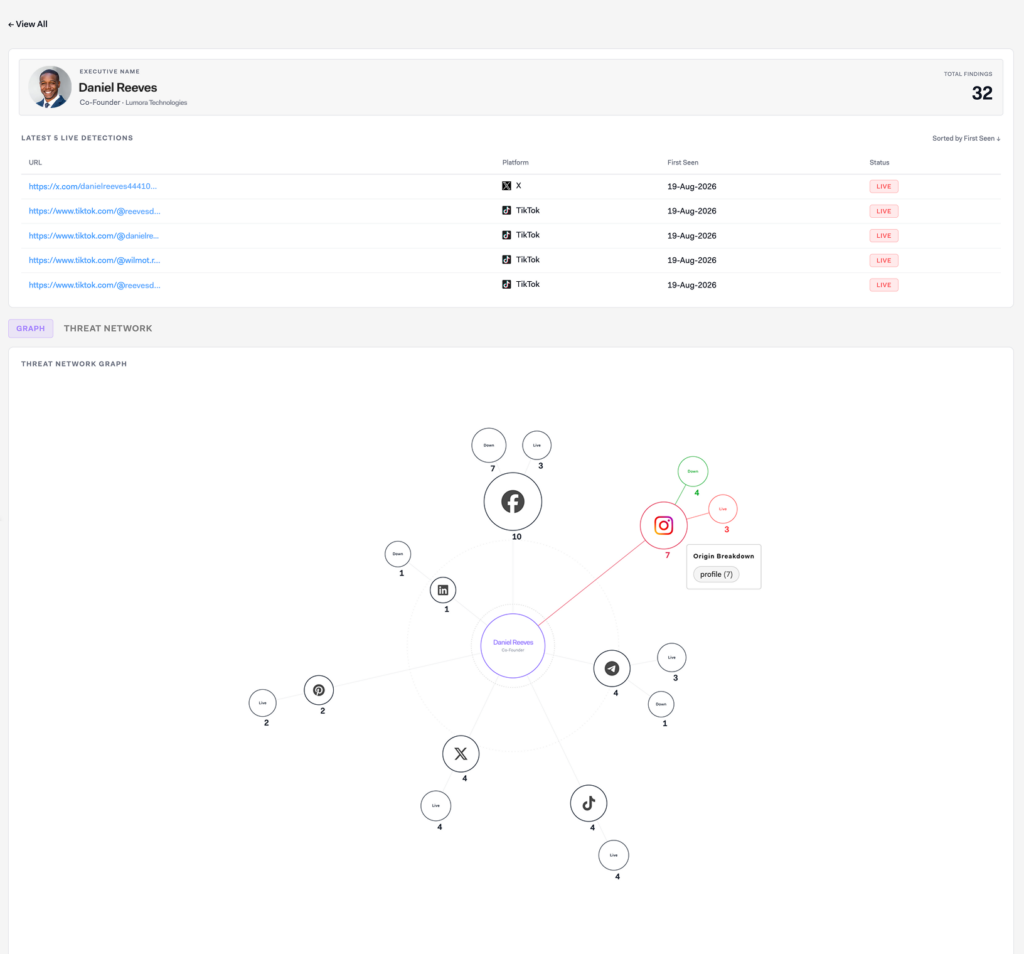
Click the name of an executive to open an expanded view with more details about impersonation threats for that executive. Use this view to see all current threats and look for network patterns.
The expanded view displays:
- A list of latest detections and detections that are still live.
- A visualization of impersonation threats for that executive. The size of each circle shows the proportion of total threats that subset of data represents:
- How many threats came from each platform. Hover over the platform logo to see the origin breakdown within that platform (profile or page).
- How many of those threats are live versus taken down. Hover over each circle to see the associated search term.
- Click the circle to go directly to a list view for those findings, where you can filter results, export data, and take bulk actions.
Assessing Impersonation Threats
From the URL list on an executive impersonations detail page, click a URL to access the URL’s Insights page for more information about the threat, including which social media search terms it matched.
Here, you can take action on a threat finding by clicking one of the following links at the top of the page:
- Request Takedown – Initiate the process to get the threat taken down
- Add to Ignored – Mark the finding as ignored, for example because it’s legitimate
Using Executives in Search Terms
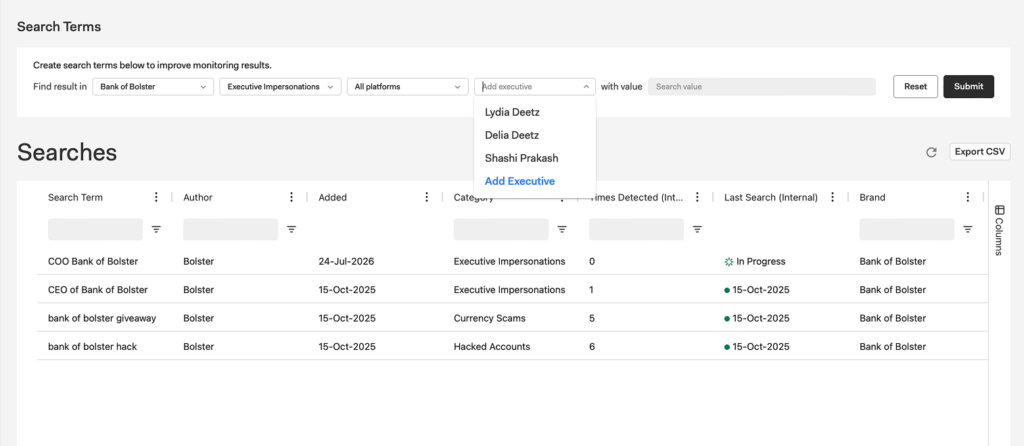
Scans are based on the search terms your organization has set up. If you want Bolster to scan for impersonation of a particular executive, you need to set up the executive as an Asset and include (“link”) it in the search term.
To link an executive to a new search term:
- At the top of the Add Search Terms page, create a search term with the category Executive Impersonations.
- Select an executive from the Add executive drop-down. That executive will be linked to the search term.
To link an executive to an existing search term:
- On the Add Search Terms page, make sure the Linked Executive column is visible (check the checkbox in the Columns menu if needed).
- For any search term in the Executive Impersonations category, look under the Linked Executive column.
- If there is an executive listed, that asset is already associated with the search term. You can click Unlink to unlink it if needed.
- If there is no executive listed, you can link one by clicking Link Executive and selecting one of the cataloged assets.