Microsoft Teams
Steps to Send Data from Platform to Microsoft Teams
In Microsoft Teams:
Login to Teams:
Open the Microsoft Teams application and log in with your credentials.
Select or Create a Channel:
- Navigate to the desired team and either open an existing channel or create a new one.
- Private channels are supported.
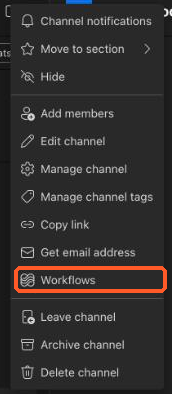
Open Workflows:
- Hover over the channel name and click the three dots ( ... ).
- Select Workflows .
Select the Webhook Template:
- In the Workflows window, select the template Send webhook alerts to a channel . You can type webhook in the search box to find it
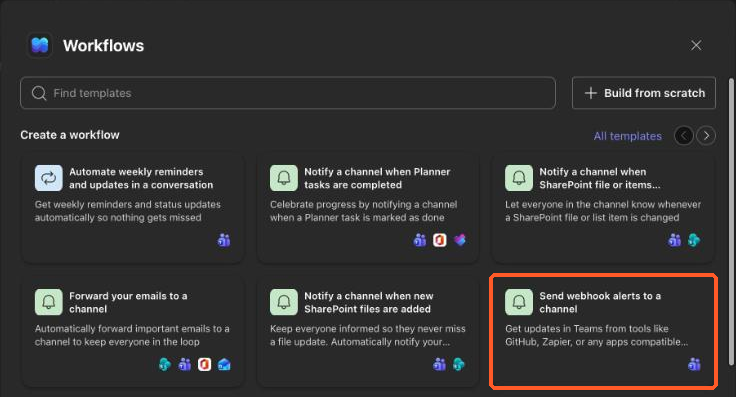
- In the Workflows window, select the template Send webhook alerts to a channel . You can type webhook in the search box to find it
Choose the Team and Channel:
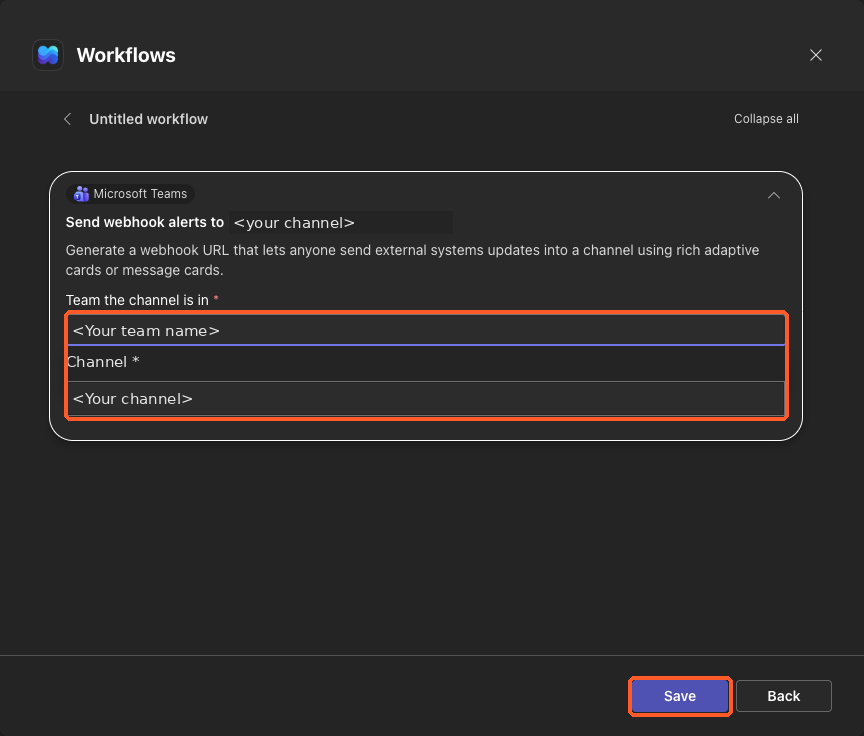
- In Team the channel is in , select your team name. Don't enter the channel name here.
In Channel , select the channel that should receive the data.
- Click Save (or Add workflow ).
Copy and Store the Webhook URL:
- Once the workflow is created, a webhook URL is displayed. It starts with https:// and contains /powerautomate/automations/direct/ .
- Copy the URL and store it securely. Anyone with this URL can post messages to the channel.
Click Done .
In the Platform (Bolster Platform):
Login to the Platform:
Log in to the platform.
Navigate to Automation:

Click on the Integration tab, Go to Teams.
Create New Connector:
In the New Microsoft Teams Connector popup, provide a name for the connector.
Input Webhook URL:
In the URL field, paste the URL you copied from the Teams webhook setup.

5. Test and Save Connector:
Click on Test Connector to ensure everything is set up correctly.
Once the test is successful, click Save.
By following these steps, you can successfully set up a connection to send data from your platform to a Microsoft Teams channel using webhooks. This integration allows for automated data transfers and notifications directly within your Teams environment.
Final Result