Threat Graph: Campaign Investigation in Signals
Overview
The Threat Graph is an interactive visualization of connected threats targeting your organization. It brings together findings across multiple attack surfaces to help your security team investigate relationships between malicious URLs, domains, hosting providers, phone numbers, emails, and social media platforms.
Instead of investigating each threat individually, you can use the Threat Graph to identify groups of related threats, uncover shared infrastructure, and understand how different components of an attack are connected.
Use the Threat Graph to:
- Investigate campaigns — Explore groups of related URLs and domains to understand the scope of an attack.
- Identify shared infrastructure — Discover domains and hosting providers associated with multiple campaigns.
- Trace attack connections — Follow relationships between websites, phone numbers, emails, redirects, and social media platforms.
- Prioritize investigations — Focus on active threats and identify infrastructure associated with multiple campaigns.
Accessing the Threat Graph
To access the Threat Graph:
- Navigate to Attack Surface > Signals in the Bolster platform.
- Scroll down past the top dashboard widgets.
- Select Threat Graph, the third tab alongside Scans and Actions.

The Threat Graph opens, displaying a visual map of detected threats and their connections. Controls on the left allow you to refine your investigation.
Understanding the Threat Graph
The Threat Graph organizes findings into connected nodes that represent different components of an attack.
Campaigns appear as clusters containing related URLs and domains. Connections extend from these clusters to other associated entities, such as hosting providers, reported emails, phone numbers, redirect destinations, and social media platforms.
This visualization helps reveal how seemingly separate findings may be part of a larger attack.
For example, multiple fraudulent websites may direct victims to the same phone number, or different campaigns may use the same hosting provider. Seeing these relationships can help your security team identify recurring patterns and investigate related threats.
Elements of the Threat Graph
The Threat Graph uses nodes and lines to visualize campaign findings and the relationships between them. Other graph elements provide additional information about the campaign.
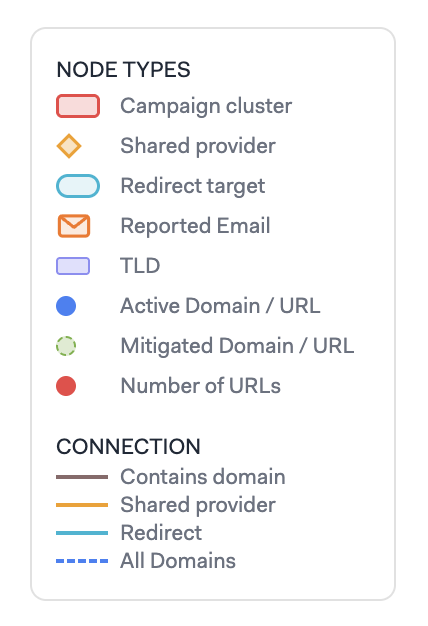
All graph elements include:
| Graph Element | Description |
| Campaign cluster | A group of related URLs and domains, represented by a red-bordered card with a website screenshot. |
| Shared provider | A hosting provider associated with one or more findings, represented by a diamond. |
| Redirect target | A redirect target associated with one or more findings, represented by a rounded rectangle node. |
| Reported Email | An email associated with detected threats, represented by an envelope icon. |
| Domain / URL | Represents a detected domain or URL. Nodes indicate whether the finding is active or mitigated. |
| Number of URLs | Indicates the count of URLs associated with a node or cluster. |
| Phone number | A phone number associated with a domain or campaign. |
| Social media | A connected social media platform, such as Facebook, Instagram, LinkedIn, X, TikTok, or YouTube. |
Lines between nodes show different kinds of relationships or connections between findings. Connection types include:
- Contains Domain — Connects a campaign to its associated domains.
- Shared Provider — Connects findings to a common hosting provider.
- Redirect — Shows a connection to another destination, such as a URL, phone number, or social media platform.
- All Domains —Represents connections between reported emails and associated domains.
Investigating a Campaign
The Threat Graph allows you to explore related threats as a single campaign as well as individual findings.
A campaign groups related URLs and domains, helping you investigate multiple findings together instead of reviewing each URL separately.
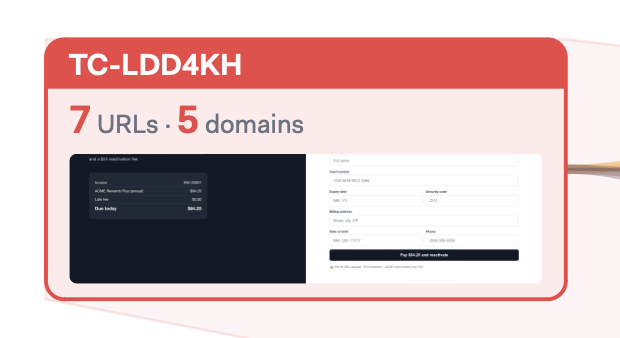
Each campaign is represented by a campaign card containing:
- Campaign ID — A unique identifier for the campaign.
- URL Count — Total number of URLs associated with the campaign.
- Domain Count — Number of domains associated with the campaign.
- Website Preview — A thumbnail screenshot representing the campaign.
To investigate a campaign:
- Locate a campaign in the Threat Graph and select the campaign card. The graph focuses on that campaign’s nodes and connections, and the campaign details panel appears to the right.
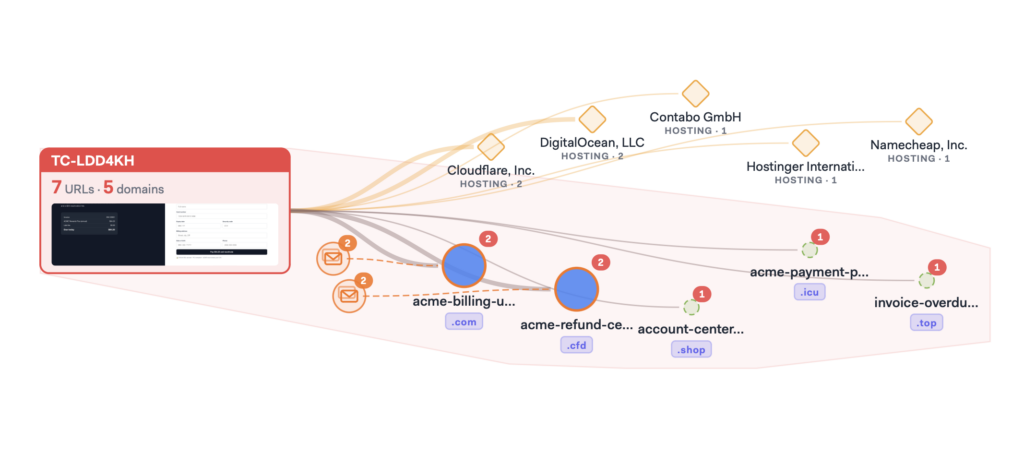
- Review the highlighted connections to see domains and related entities.
- Use the details panel to examine findings and infrastructure related to the campaign.
- Select the x in the upper right corner of the details panel to close it and investigate another campaign.
Campaign Details
Selecting a campaign opens a details panel.
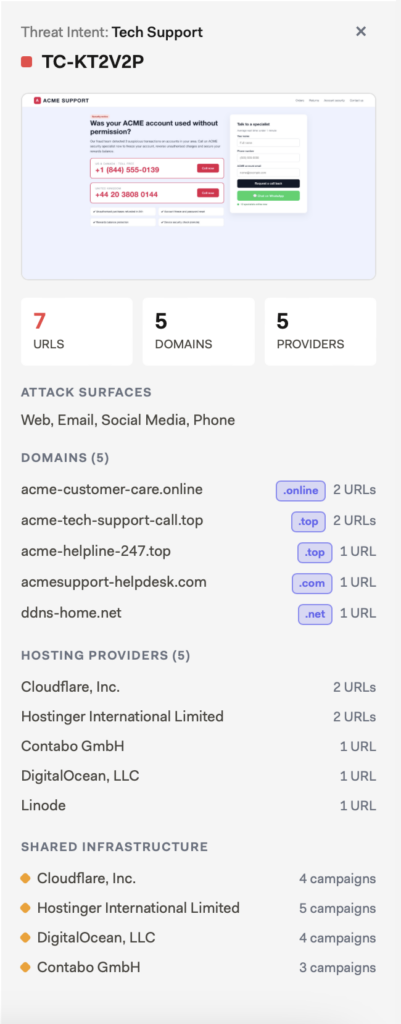
The campaign details panel contains the following information:
| Information | Description |
| URLs | Total number of URLs associated with the campaign. |
| Domains | Number of unique domains associated with the campaign. |
| Providers | Number of identified hosting providers. |
| Attack Surfaces | Types of channels associated with the campaign, such as Web, Social Media, and Phone. |
| Domains | List of associated domains and their URL counts. |
| Hosting Providers | List of identified hosting providers associated with the campaign and their URL counts. |
| Shared Infrastructure | Domains or hosting providers that are also associated with other campaigns. |
The Shared Infrastructure section highlights domains and hosting providers used across multiple campaigns, helping identify potential connections for further investigation.
Exploring Individual Findings
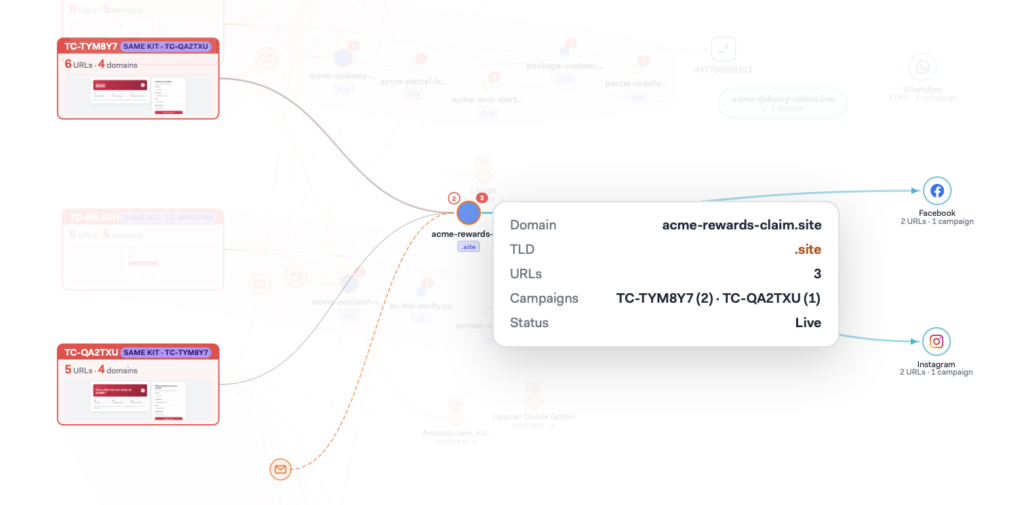
In addition to investigating entire campaigns, you can select individual nodes to examine specific findings. The details panel updates based on the selected node.
Domains
In the Threat Graph, select a domain to review its associated URLs, campaign relationships, and available infrastructure information.
This information helps identify whether a domain is connected to multiple campaigns or attack destinations.
Phone Numbers
In the Threat Graph, select a phone number to review its associated domains and campaigns. When a phone number is selected, the details panel displays the following:
- Number of URLs associated with the phone number
- Number of source domains
- Number of connected campaigns
- Associated campaign previews
This information is useful when investigating technical support scams, where fraudulent websites direct victims to call a malicious phone number.
Reported Emails
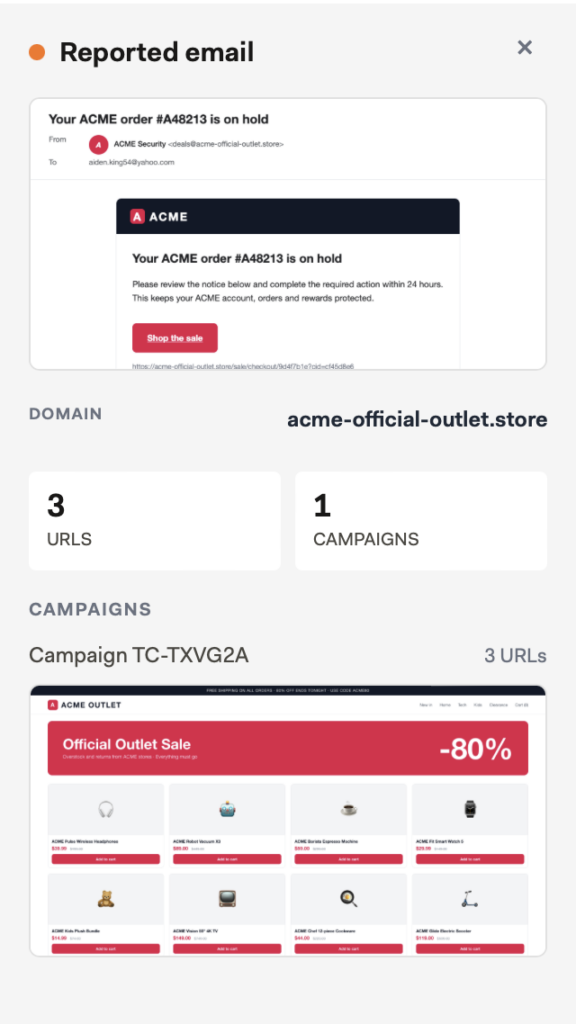
In the Threat Graph, select a reported email node to see a preview of the email and its connections to detected domains or campaigns. The details panel displays a screenshot of the reported email, and available information about the associated domain, URLs, and campaigns.
This information helps connect email-based threats with related web infrastructure and other attack destinations.
Hosting Providers
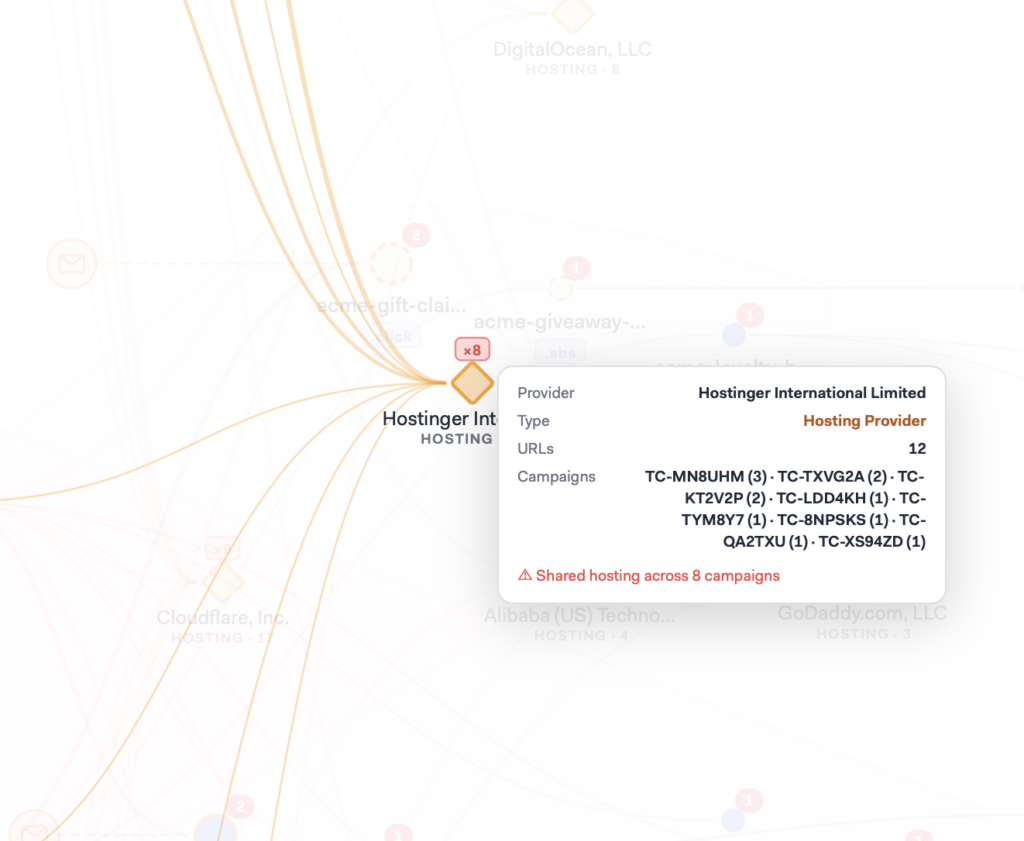
In the Threat Graph, hosting provider nodes show infrastructure associated with detected domains.
Reviewing these connections can help identify multiple campaigns using the same hosting infrastructure.
Social Media and Redirect Destinations
In the Threat Graph, follow connections from domains to social media platforms or redirect destinations to understand how threats extend beyond the original website.
These connections may reveal additional destinations used to engage or redirect potential victims.
Filtering the Threat Graph
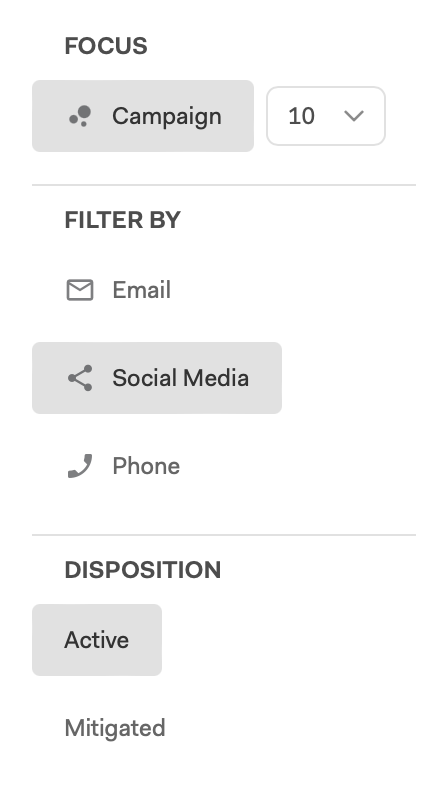
Use the control panel on the left of the Threat Graph to narrow findings displayed by campaign, threat source, or disposition.
- Focus — Select how many campaigns (5, 10, or 15) to display in the graph.
- Filter by — Filter findings by source: Email, Social Media, or Phone.
- Disposition — Filter findings by status: Active or Mitigated.
Click a filter selection to apply that filter and click it again to remove it.
You can combine filters to focus on specific threats and their connections. For example, select Phone and Active to investigate active threats associated with phone numbers.